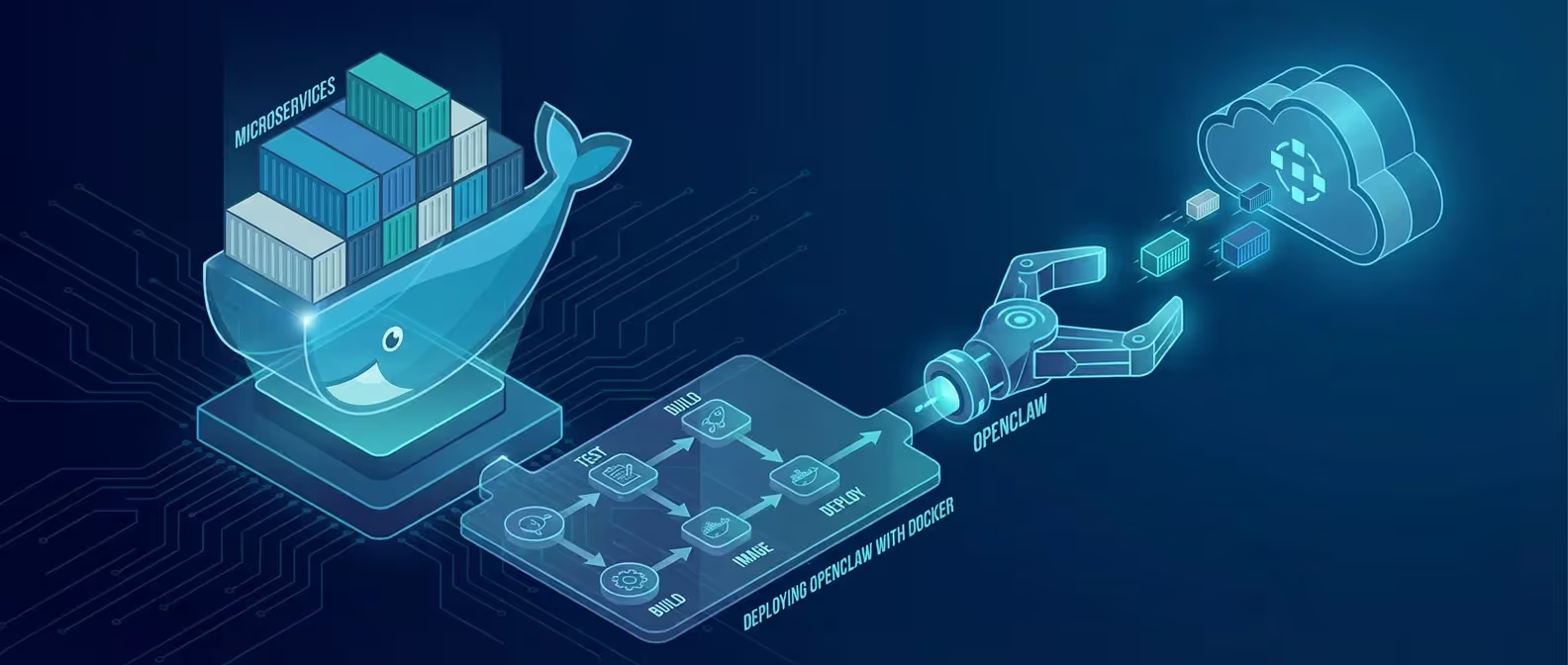

OpenClaw has quickly become the go-to self-hosted AI assistant gateway for developers in 2026. It connects your favorite messaging platforms — WhatsApp, Telegram, Discord, iMessage — directly to powerful AI coding agents, all running on your own hardware. No cloud middlemen. No data leaks.
In this guide, we’ll walk through every step to get OpenClaw installed and running from scratch.
Prerequisites
Before we start, make sure you have the following:
- Node.js 22.12.0 or later (we recommend Node.js 24 LTS)
- An LLM API key from Anthropic, OpenAI, or Google
- A dedicated machine or VPS — do NOT install OpenClaw on your primary work machine for security reasons
- Windows users: WSL2 (Windows Subsystem for Linux) is required
Check Your Node.js Version
node -vIf you’re below v22.12.0, upgrade via nvm or download from nodejs.org.
# Using nvm (recommended)
nvm install 24
nvm use 24
Step 1: Install OpenClaw via NPM
The fastest way to install OpenClaw is through NPM’s global package.
macOS / Linux
npm install -g openclaw@latestWindows (PowerShell — runs inside WSL2)
# First, ensure WSL2 is installed
wsl --install

# Inside your WSL2 terminal:
npm install -g openclaw@latest
Alternative: Shell Script (macOS / Linux)
curl -fsSL https://openclaw.ai/install.sh | bashVerify the installation:
openclaw --versionYou should see output like openclaw v3.x.x.
Step 2: Run the Onboarding Wizard
OpenClaw ships with a built-in onboarding wizard that configures authentication, gateway settings, and messaging channels all in one flow.
openclaw onboard --install-daemonThe wizard will guide you through:
- Authentication Setup — Create a secure passphrase for the gateway
- AI Provider Selection — Choose between Anthropic (Claude), OpenAI, or Google
- API Key Configuration — Paste your LLM API key
- Channel Setup — Connect your first messaging platform (Telegram is the easiest to start with)
Step 3: Connect Your First Channel (Telegram)
Telegram is the simplest channel to configure. Here’s the process:
- Open Telegram and search for @BotFather
- Send
/newbotand follow the prompts to create your bot - Copy the bot token BotFather gives you
- Get your Telegram User ID (send a message to
@userinfobot)
When the onboarding wizard asks for channel configuration:
? Select a channel to connect: Telegram
? Enter your Telegram Bot Token: 7123456789:AAHxxxxxxxxxxxxxxxxxxxxxxxxxxxxxx
? Enter your Telegram User ID: 123456789
Step 4: Verify the Gateway
Once onboarding is complete, check that everything is running:
openclaw gateway statusYou should see output similar to:
┌─────────────────────────────────────┐
│  OpenClaw Gateway Status            │
├─────────────────────────────────────┤
│  Status:    ● Running               │
│  Uptime:    2m 34s                  │
│  Channels:  Telegram (connected)    │
│  AI Model:  claude-3.5-sonnet       │
│  Version:   3.2.1                   │
└─────────────────────────────────────┘
Step 5: Send Your First Message
Open Telegram and send a message to your new bot:
Hey OpenClaw, what can you do?The AI will respond with its capabilities — file management, command execution, web search, and more.
Step 6: Access the Dashboard
OpenClaw also provides a browser-based control panel:
openclaw dashboardThis opens a local web UI (usually at http://localhost:3377) where you can:
- Chat with your AI assistant directly
- Monitor gateway activity
- Configure tools and skills
- View session history
Troubleshooting Common Issues
”Command not found: openclaw”
Make sure your global NPM bin directory is in your $PATH:
# Check your npm global prefix
npm config get prefix

# Add to your shell profile (e.g. ~/.zshrc or ~/.bashrc)
export PATH="$(npm config get prefix)/bin:$PATH"
source ~/.zshrc
Port Already in Use
If port 3377 is occupied:
openclaw gateway start --port 3400WSL2 Networking Issues on Windows
Ensure your WSL2 distribution has proper network access:
# Inside WSL2
ping 8.8.8.8
curl -I https://registry.npmjs.org
Security Best Practices
Since OpenClaw can execute commands and access files, security is paramount:
- Use a dedicated machine or VPS — never your primary workstation
- Bind to localhost only — use a VPN for remote access
- Run as a non-root user — create a dedicated
openclawsystem user - Use burner accounts for connected messaging platforms
# Create a dedicated user (Linux)
sudo useradd -m -s /bin/bash openclaw
sudo su - openclaw

# Install and run as this user
npm install -g openclaw@latest
openclaw onboard --install-daemon
What’s Next?
Now that OpenClaw is installed, you’re ready to configure custom tools, create skills, and connect additional channels. Check out our other OpenClaw tutorials for advanced setups like browser automation, multi-agent routing, and Docker deployments.
Need help deploying OpenClaw for your team? Contact our engineering team — we specialize in self-hosted AI infrastructure.