

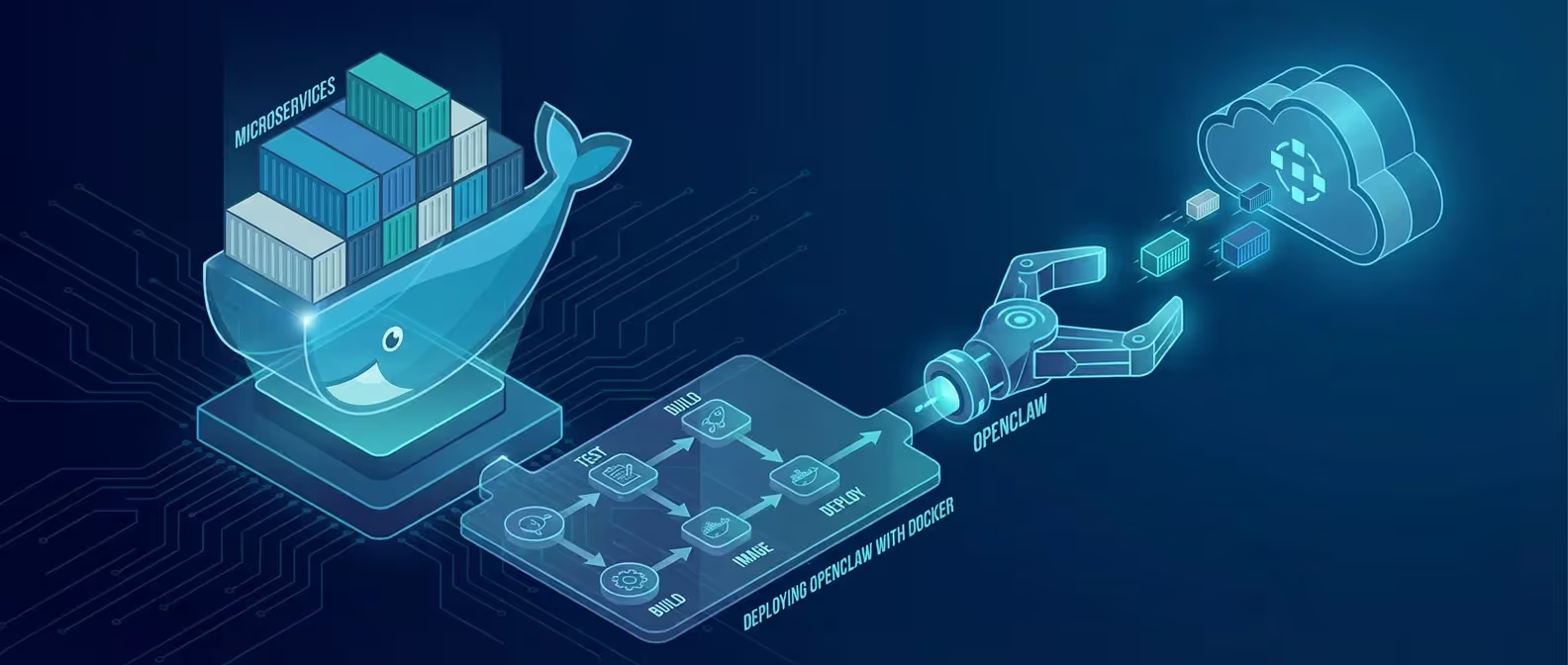
Running OpenClaw directly on your host machine works fine for testing, but for production deployments, Docker is the gold standard. Containerization gives you sandboxed execution, easy rollbacks, and the peace of mind that your AI assistant can’t accidentally wreck your system.
In this guide, we’ll build a production-grade Docker deployment for OpenClaw from scratch.
Why Docker for OpenClaw?
OpenClaw has access to powerful capabilities — command execution, file management, and browser automation. Running it in a container:
- Isolates the environment — limits blast radius if something goes wrong
- Makes deployments reproducible — same setup on any machine
- Simplifies updates — pull the latest image and restart
- Enables resource limits — control CPU, memory, and disk usage
Prerequisites
- Docker Engine 24+ installed
- Docker Compose v2+
- An LLM API key (Anthropic, OpenAI, or Google)
- Basic familiarity with Docker concepts
Verify Docker Installation
docker --version
docker compose version
Step 1: Create the Project Structure
mkdir openclaw-docker && cd openclaw-docker

mkdir -p config skills data
Your directory should look like:
openclaw-docker/
├── docker-compose.yml
├── Dockerfile
├── config/
│   └── config.yaml
├── skills/
└── data/
Step 2: Write the Dockerfile
Create a Dockerfile that builds an optimized OpenClaw image:
# Dockerfile
FROM node:24-slim

# Security: create non-root user
RUN groupadd -r openclaw && useradd -r -g openclaw -m openclaw

# Install OpenClaw globally
RUN npm install -g openclaw@latest

# Install common utilities OpenClaw might need
RUN apt-get update && apt-get install -y --no-install-recommends \
    curl \
    git \
    jq \
    && rm -rf /var/lib/apt/lists/*

# Set working directory
WORKDIR /home/openclaw

# Copy configuration
COPY --chown=openclaw:openclaw config/ /home/openclaw/.openclaw/

# Copy custom skills
COPY --chown=openclaw:openclaw skills/ /home/openclaw/.openclaw/skills/

# Switch to non-root user
USER openclaw

# Expose dashboard port
EXPOSE 3377

# Health check
HEALTHCHECK --interval=30s --timeout=10s --start-period=15s --retries=3 \
    CMD openclaw gateway status || exit 1

# Start the gateway
CMD ["openclaw", "gateway", "start", "--foreground"]
Step 3: Configure OpenClaw
Create your configuration file at config/config.yaml:
# config/config.yaml
gateway:
  host: "0.0.0.0"
  port: 3377
  log_level: "info"

ai:
  provider: "anthropic"
  model: "claude-3.5-sonnet"
  # API key loaded from environment variable
  api_key: "${ANTHROPIC_API_KEY}"

channels:
  telegram:
    enabled: true
    bot_token: "${TELEGRAM_BOT_TOKEN}"
    allowed_users:
      - ${TELEGRAM_USER_ID}

tools:
  file_access:
    enabled: true
    sandboxed: true
    allowed_paths:
      - /home/openclaw/workspace
  command_execution:
    enabled: true
    sandboxed: true
    blocked_commands:
      - rm -rf /
      - dd
      - mkfs
  web_search:
    enabled: true
  browser:
    enabled: false  # Requires additional setup

security:
  require_approval:
    - file_delete
    - command_execution
  max_tokens_per_request: 8192
  rate_limit:
    requests_per_minute: 30
Step 4: Write the Docker Compose File
# docker-compose.yml
version: "3.9"

services:
  openclaw:
    build:
      context: .
      dockerfile: Dockerfile
    container_name: openclaw-gateway
    restart: unless-stopped
    ports:
      - "127.0.0.1:3377:3377"  # Dashboard — localhost only
    environment:
      - ANTHROPIC_API_KEY=${ANTHROPIC_API_KEY}
      - TELEGRAM_BOT_TOKEN=${TELEGRAM_BOT_TOKEN}
      - TELEGRAM_USER_ID=${TELEGRAM_USER_ID}
    volumes:
      - ./data:/home/openclaw/workspace       # Persistent workspace
      - ./skills:/home/openclaw/.openclaw/skills  # Custom skills
      - openclaw-sessions:/home/openclaw/.openclaw/sessions  # Session data
    deploy:
      resources:
        limits:
          cpus: "2.0"
          memory: 2G
        reservations:
          cpus: "0.5"
          memory: 512M
    security_opt:
      - no-new-privileges:true
    read_only: false
    tmpfs:
      - /tmp:size=100M

volumes:
  openclaw-sessions:
Step 5: Create the Environment File
# .env (DO NOT commit this file)
ANTHROPIC_API_KEY=sk-ant-your-api-key-here
TELEGRAM_BOT_TOKEN=7123456789:AAH_your_bot_token
TELEGRAM_USER_ID=987654321
Add .env to your .gitignore:
echo ".env" >> .gitignoreStep 6: Build and Launch
# Build the image
docker compose build

# Start in detached mode
docker compose up -d

# View logs
docker compose logs -f openclaw
You should see:
openclaw-gateway | ✓ OpenClaw Gateway v3.2.1 started
openclaw-gateway | ✓ Telegram channel connected
openclaw-gateway | ✓ Dashboard available at http://0.0.0.0:3377
openclaw-gateway | ✓ Ready to receive messages
Step 7: Verify the Deployment
# Check container health
docker compose ps

# Test gateway status from inside the container
docker compose exec openclaw openclaw gateway status

# Access the dashboard
curl http://localhost:3377/health
Updating OpenClaw
When a new version drops, updating is a one-liner:
# Rebuild with latest version
docker compose build --no-cache

# Rolling restart
docker compose up -d
Production Hardening Checklist
For a truly production-grade deployment, add these layers:
Reverse Proxy with NGINX
# /etc/nginx/sites-available/openclaw
server {
    listen 443 ssl http2;
    server_name openclaw.yourdomain.com;

    ssl_certificate /etc/letsencrypt/live/openclaw.yourdomain.com/fullchain.pem;
    ssl_certificate_key /etc/letsencrypt/live/openclaw.yourdomain.com/privkey.pem;

    location / {
        proxy_pass http://127.0.0.1:3377;
        proxy_http_version 1.1;
        proxy_set_header Upgrade $http_upgrade;
        proxy_set_header Connection "upgrade";
        proxy_set_header Host $host;
        proxy_set_header X-Real-IP $remote_addr;
    }
}
Automatic Backups
#!/bin/bash
# backup-openclaw.sh
BACKUP_DIR="/backups/openclaw/$(date +%Y%m%d)"
mkdir -p "$BACKUP_DIR"

docker compose exec openclaw tar -czf - /home/openclaw/.openclaw/sessions > "$BACKUP_DIR/sessions.tar.gz"
cp -r ./config "$BACKUP_DIR/config"
cp -r ./skills "$BACKUP_DIR/skills"

echo "Backup completed: $BACKUP_DIR"
Add to crontab:
0 2 * * * /path/to/backup-openclaw.shConclusion
Docker gives you the perfect sandbox for running OpenClaw with confidence. Your AI assistant gets the tools it needs while staying firmly contained within resource and permission boundaries.
Need a managed OpenClaw deployment? Our DevOps team can architect a production-grade setup tailored to your infrastructure.