
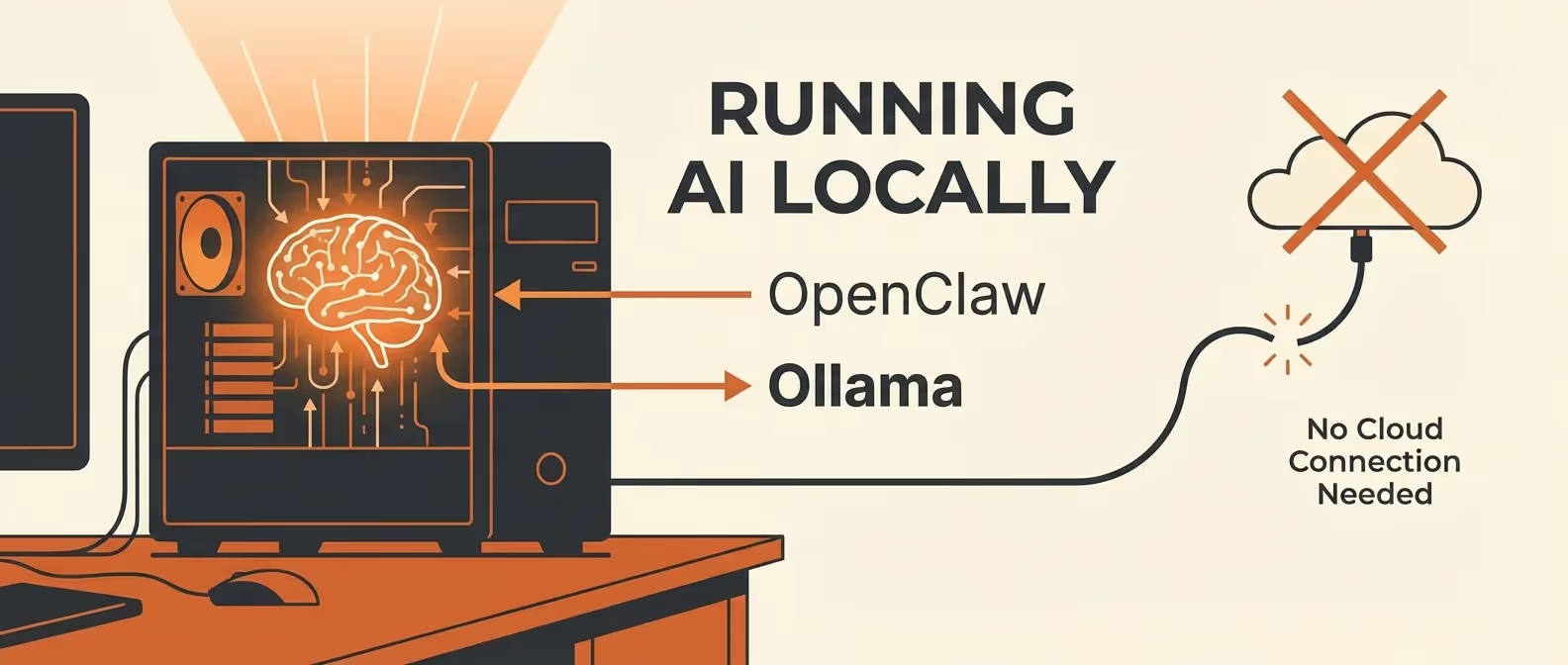
Cloud AI APIs are powerful, but they come with costs, rate limits, and privacy concerns. What if you could run your AI assistant entirely on your own hardware — no API keys, no monthly bills, complete data sovereignty?
That’s exactly what OpenClaw + Ollama delivers. In this guide, we’ll set up a fully local AI assistant stack.
What is Ollama?
Ollama is a lightweight runtime that lets you run open-source large language models (LLMs) on your local machine. It handles model downloading, quantization, GPU acceleration, and serving — all through a simple CLI.
Combined with OpenClaw, Ollama becomes the brain behind your self-hosted AI assistant.
Prerequisites
- OpenClaw installed and running (installation guide)
- Hardware requirements (varies by model):
- Minimum: 16GB RAM, modern CPU
- Recommended: 32GB RAM, NVIDIA GPU with 8GB+ VRAM
- Ideal: 64GB RAM, NVIDIA RTX 4090 or Apple M3/M4 with 32GB+ unified memory
Step 1: Install Ollama
macOS
brew install ollamaLinux
curl -fsSL https://ollama.ai/install.sh | shWindows (WSL2)
# Inside WSL2
curl -fsSL https://ollama.ai/install.sh | sh
Verify installation:
ollama --versionStep 2: Download Your First Model
Ollama has a library of optimized models. Here are the best choices for OpenClaw:
# Best all-around (requires ~40GB RAM or 24GB VRAM)
ollama pull llama3.2:70b

# Great balance of speed and quality (requires ~16GB RAM or 8GB VRAM)
ollama pull llama3.2:8b

# Code-specialized model
ollama pull codellama:34b

# Fast and lightweight (runs on almost anything)
ollama pull phi3:mini
Model Size Reference
| Model | Parameters | RAM Needed | VRAM Needed | Quality |
|---|---|---|---|---|
phi3:mini | 3.8B | 8GB | 4GB | ★★★☆☆ |
llama3.2:8b | 8B | 16GB | 8GB | ★★★★☆ |
codellama:34b | 34B | 32GB | 16GB | ★★★★☆ |
llama3.2:70b | 70B | 48GB | 24GB | ★★★★★ |
mixtral:8x7b | 46.7B | 32GB | 16GB | ★★★★☆ |
Step 3: Start the Ollama Server
# Start in the background
ollama serve &

# Or as a system service (Linux)
sudo systemctl enable ollama
sudo systemctl start ollama
Test that it’s running:
curl http://localhost:11434/api/tagsYou should see a JSON response listing your downloaded models.
Step 4: Connect OpenClaw to Ollama
Configure OpenClaw to use Ollama as its AI provider:
# ~/.openclaw/config.yaml
ai:
  provider: "ollama"

  providers:
    ollama:
      host: "http://localhost:11434"
      models:
        - name: "llama3.2:8b"
          max_tokens: 4096
          temperature: 0.7
          # Context window (depends on model)
          context_length: 8192
Restart the gateway:
openclaw gateway restartStep 5: Verify the Connection
openclaw diagnostics --providers┌──────────┬──────────┬──────────────────┬──────────┐
│ Provider │ Status │ Model │ Latency │
├──────────┼──────────┼──────────────────┼──────────┤
│ Ollama │ ● Online │ llama3.2:8b │ 1.8s │
└──────────┴──────────┴──────────────────┴──────────┘Send a test message through any connected channel:
What's 2 + 2? Explain the mathematical reasoning.Step 6: GPU Acceleration
NVIDIA GPUs (CUDA)
Ollama automatically detects NVIDIA GPUs. Verify:
# Check GPU detection
ollama ps
If your GPU isn’t detected, install the NVIDIA Container Toolkit:
# Ubuntu/Debian
curl -fsSL https://nvidia.github.io/libnvidia-container/gpgkey | sudo gpg --dearmor -o /usr/share/keyrings/nvidia-container-toolkit-keyring.gpg
sudo apt-get update
sudo apt-get install -y nvidia-container-toolkit
Apple Silicon (M1/M2/M3/M4)
Ollama uses Metal GPU acceleration automatically on Apple Silicon. No extra setup needed — just ensure you have enough unified memory.
Verify GPU Usage
# NVIDIA
nvidia-smi

# Watch GPU usage in real-time
watch -n 1 nvidia-smi
Step 7: Performance Tuning
Optimize for Speed
# ~/.openclaw/config.yaml
ai:
  providers:
    ollama:
      host: "http://localhost:11434"
      models:
        - name: "llama3.2:8b"
          # Reduce for faster responses
          max_tokens: 2048
          # Lower temperature = more deterministic (slightly faster)
          temperature: 0.3
          # Number of GPU layers (increase to offload more to GPU)
          num_gpu: 99  # Use all available GPU layers
          # Keep model in memory between requests
          keep_alive: "30m"
          # Batch size for prompt processing
          num_batch: 512
Memory Management
If you’re running on limited RAM, manage model loading:
# Unload a model from memory
ollama stop llama3.2:70b

# List loaded models
ollama ps
Configure OpenClaw to manage Ollama memory:
ai:
  providers:
    ollama:
      memory_management:
        # Unload model after inactivity
        unload_after: "15m"
        # Max models loaded simultaneously
        max_loaded_models: 1
Step 8: Multiple Local Models
Run different models for different tasks (pairs well with multi-agent routing):
ai:
  providers:
    ollama:
      host: "http://localhost:11434"
      models:
        - name: "llama3.2:8b"     # General conversation
        - name: "codellama:34b"    # Code generation
        - name: "phi3:mini"        # Quick responses

routing:
  rules:
    - name: "coding"
      match:
        keywords: ["code", "function", "debug", "implement"]
      route:
        provider: "ollama"
        model: "codellama:34b"

    - name: "quick"
      match:
        max_input_tokens: 50
      route:
        provider: "ollama"
        model: "phi3:mini"

  # Default to general model
  default:
    provider: "ollama"
    model: "llama3.2:8b"
Step 9: Hybrid Mode (Local + Cloud)
The best of both worlds — use local models for most tasks, cloud for complex ones:
ai:
  default_provider: "ollama"
  default_model: "llama3.2:8b"

  providers:
    ollama:
      host: "http://localhost:11434"
      models:
        - name: "llama3.2:8b"

    anthropic:
      api_key: "${ANTHROPIC_API_KEY}"
      models:
        - name: "claude-3.5-sonnet"

routing:
  rules:
    # Complex tasks go to Claude
    - name: "complex"
      match:
        keywords: ["analyze", "refactor", "architect", "review complex"]
      route:
        provider: "anthropic"
        model: "claude-3.5-sonnet"

    # Privacy-sensitive stays local
    - name: "private"
      match:
        keywords: ["private", "confidential", "personal"]
      route:
        provider: "ollama"
        model: "llama3.2:8b"

  # Everything else: local
  default:
    provider: "ollama"
    model: "llama3.2:8b"
This way, 90% of your queries cost $0 while still having cloud models available for heavy lifting.
Benchmarking Your Setup
Test your local model performance:
openclaw benchmark --provider ollama --model llama3.2:8b┌─────────────────────────┬──────────────┐
│ Metric │ Result │
├─────────────────────────┼──────────────┤
│ Time to First Token │ 0.8s │
│ Tokens/Second │ 42 tok/s │
│ Average Response Time │ 3.2s │
│ Memory Usage │ 5.4GB │
│ GPU Utilization │ 87% │
│ Quality Score (MMLU) │ 72.3% │
└─────────────────────────┴──────────────┘Troubleshooting
”Model not found”
# List available models
ollama list

# Pull the missing model
ollama pull llama3.2:8b
Slow Response Times
- Use a smaller model or lower quantization
- Increase
num_gputo offload more to GPU - Reduce
max_tokensin the config - Close other GPU-intensive applications
Out of Memory (OOM)
# Check memory usage
free -h

# Use a smaller model
ollama pull llama3.2:8b  # Instead of 70b

# Or use quantized versions
ollama pull llama3.2:8b-q4_0  # 4-bit quantization
Conclusion
Running OpenClaw with Ollama gives you the ultimate self-hosted AI stack — zero API costs, complete privacy, and full control over your data. While local models aren’t quite as powerful as the latest cloud offerings, they’re more than capable for most daily tasks, and they’re getting better every month.
Want help optimizing your local AI infrastructure? Our team designs high-performance self-hosted AI deployments for businesses and development teams.