
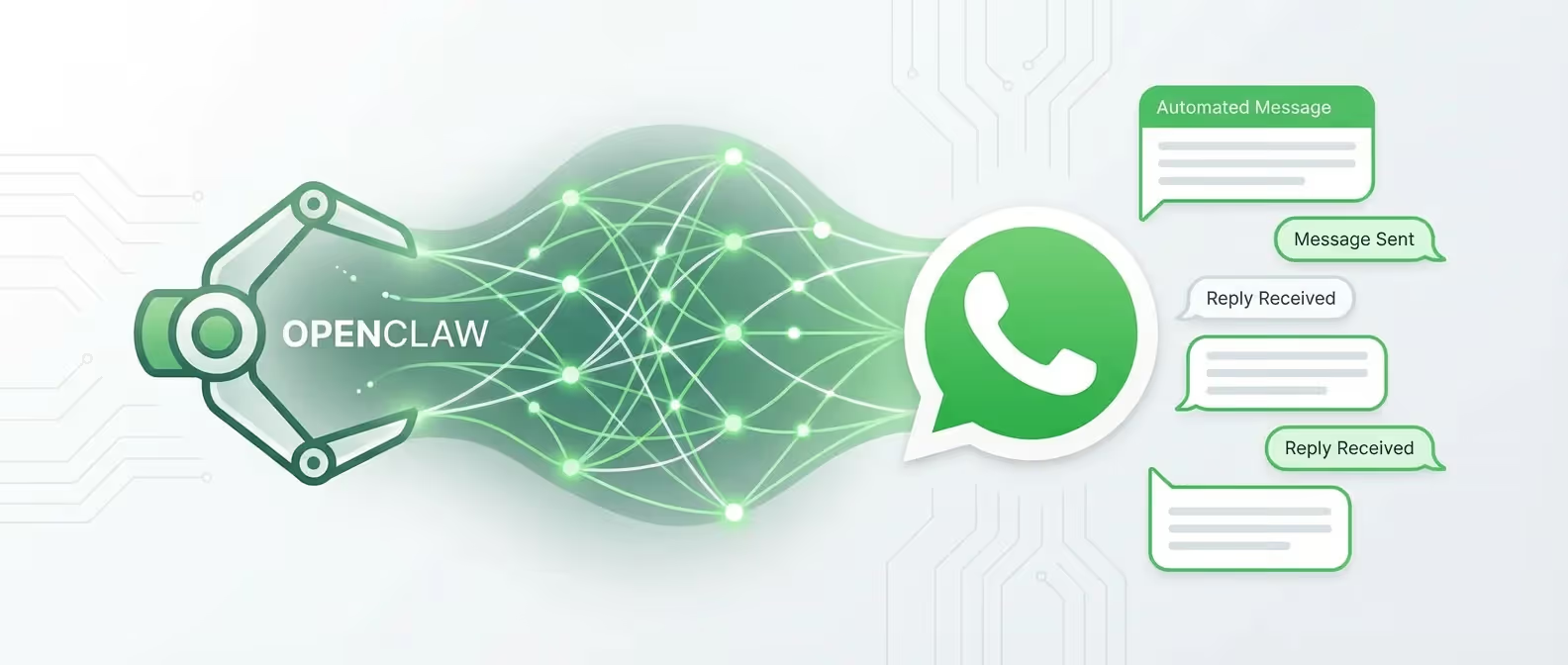
WhatsApp is the world’s most-used messaging platform with over 2 billion users. Connecting it to OpenClaw gives you an AI assistant inside the app you already use every day — no switching between tools, no context loss.
This guide covers the complete WhatsApp integration process, from API bridge setup to advanced automation.
Prerequisites
- OpenClaw installed and gateway running (installation guide)
- A dedicated phone number for WhatsApp (use a burner number — not your primary)
- Node.js 22+
- A stable internet connection (the bridge must stay connected)
Security Warning: Use a dedicated, non-primary phone number. OpenClaw will have access to messages on this account. A prepaid SIM or VoIP number is ideal.
Understanding the Architecture
Unlike Telegram, WhatsApp doesn’t have a public bot API for personal accounts. OpenClaw bridges this gap using the WhatsApp Web multi-device protocol:
Your Phone (WhatsApp)
    ↕ WhatsApp Multi-Device Protocol
OpenClaw Bridge (your server)
    ↕ Internal API
OpenClaw Gateway → AI Model
The bridge connects to WhatsApp Web, receives messages, routes them through OpenClaw, and sends back responses — all self-hosted.
Step 1: Install the WhatsApp Bridge
OpenClaw includes a built-in WhatsApp bridge module. Enable it:
openclaw channel add whatsappThis installs the required dependencies automatically. If you prefer manual installation:
npm install -g @openclaw/bridge-whatsapp@latestStep 2: Authenticate with QR Code
Start the WhatsApp authentication flow:
openclaw channel auth whatsappA QR code will appear in your terminal:
Scan this QR code with WhatsApp on your phone:

  ██████████████████████
  ██                  ██
  ██  ▄▄▄▄▄▄  ▄▄▄▄  ██
  ██  ██    ██  ████  ██
  ██  ██████  ▄▄▄▄▄  ██
  ██                  ██
  ██████████████████████

Open WhatsApp → Settings → Linked Devices → Link a Device- Open WhatsApp on your phone
- Go to Settings → Linked Devices
- Tap Link a Device
- Scan the QR code from your terminal
After scanning, you’ll see:
✓ WhatsApp authenticated successfully
✓ Session stored at ~/.openclaw/channels/whatsapp/session/
✓ Bridge connected — listening for messages
Step 3: Configure the Channel
Edit your OpenClaw config to fine-tune WhatsApp behavior:
# ~/.openclaw/config.yaml
channels:
  whatsapp:
    enabled: true
    # Only respond to messages from these numbers
    allowed_contacts:
      - "+1234567890"     # Your primary phone
      - "+0987654321"     # Trusted contact
    # Ignore group messages (recommended for security)
    ignore_groups: true
    # Auto-read messages to avoid "unread" indicators
    auto_read: true
    # Response settings
    response:
      typing_indicator: true      # Show "typing..." before responding
      typing_delay_ms: 1500       # Simulate natural typing speed
      max_message_length: 4096    # WhatsApp's character limit
      split_long_messages: true   # Auto-split messages over the limit
Restart the gateway:
openclaw gateway restartStep 4: Test the Integration
Send a WhatsApp message to the number running OpenClaw:
Hey, can you search the web for the latest Node.js release?OpenClaw will process the message, use its web search tool, and reply directly in WhatsApp.
Step 5: Handle Media Messages
OpenClaw can process images, documents, and voice notes sent via WhatsApp:
channels:
  whatsapp:
    media:
      images: true           # Process incoming images
      documents: true        # Process PDFs, spreadsheets, etc.
      voice_notes: true      # Transcribe voice messages
      download_path: "/home/openclaw/workspace/whatsapp-media"
Example: Image Analysis
Send a screenshot to your OpenClaw WhatsApp number with the caption:
What's wrong with this code?OpenClaw will analyze the image, identify code errors, and reply with fixes.
Step 6: Set Up Auto-Responses
Configure OpenClaw to handle specific message patterns automatically:
# ~/.openclaw/skills/whatsapp-auto-reply.yaml
name: whatsapp-auto-reply
description: "Automatic responses for common WhatsApp queries"
version: 1.0

channel: whatsapp

patterns:
  - match: "status"
    action: "Run `openclaw gateway status` and send a formatted summary"

  - match: "remind me (.*) at (.*)"
    action: |
      Parse the reminder text and time from the message.
      Create a cron job that sends the reminder at the specified time.
      Confirm the reminder was set.

  - match: "translate (.*) to (.*)"
    action: |
      Translate the specified text to the target language.
      Reply with the translation.
openclaw skill enable whatsapp-auto-replyStep 7: Session Persistence
WhatsApp sessions persist across gateway restarts. The session data is stored locally:
# Session location
ls ~/.openclaw/channels/whatsapp/session/

# Back up your session
cp -r ~/.openclaw/channels/whatsapp/session/ ~/backups/whatsapp-session-backup/
If authentication expires (rare, but possible):
# Re-authenticate
openclaw channel auth whatsapp --force
Troubleshooting
QR Code Expired
QR codes expire after 60 seconds. Restart the auth flow:
openclaw channel auth whatsapp“Session Closed” Errors
This usually means WhatsApp unlinked the device. Re-authenticate:
openclaw channel auth whatsapp --forceMessages Not Being Received
Check the bridge logs:
openclaw logs --follow --channel whatsappCommon fixes:
- Ensure your phone has an active internet connection
- Check that the bridge process is running
- Verify the contact’s number is in
allowed_contacts
Rate Limiting
WhatsApp has anti-spam protections. Avoid sending too many messages too quickly:
channels:
  whatsapp:
    rate_limit:
      messages_per_minute: 10
      cooldown_after_burst: 30  # seconds
Privacy Considerations
- All messages are processed locally on your server — nothing is sent to third-party services except the LLM API calls
- Session keys are stored encrypted at rest
- Media files are stored locally and can be auto-deleted:
channels:
  whatsapp:
    media:
      auto_delete_after: "24h"
Conclusion
With WhatsApp connected to OpenClaw, your AI assistant lives in the messaging app you use most. From quick questions to complex automations, your self-hosted AI is just a message away.
Need help setting up OpenClaw for your business communication? Get in touch with our team — we build custom AI messaging solutions.