
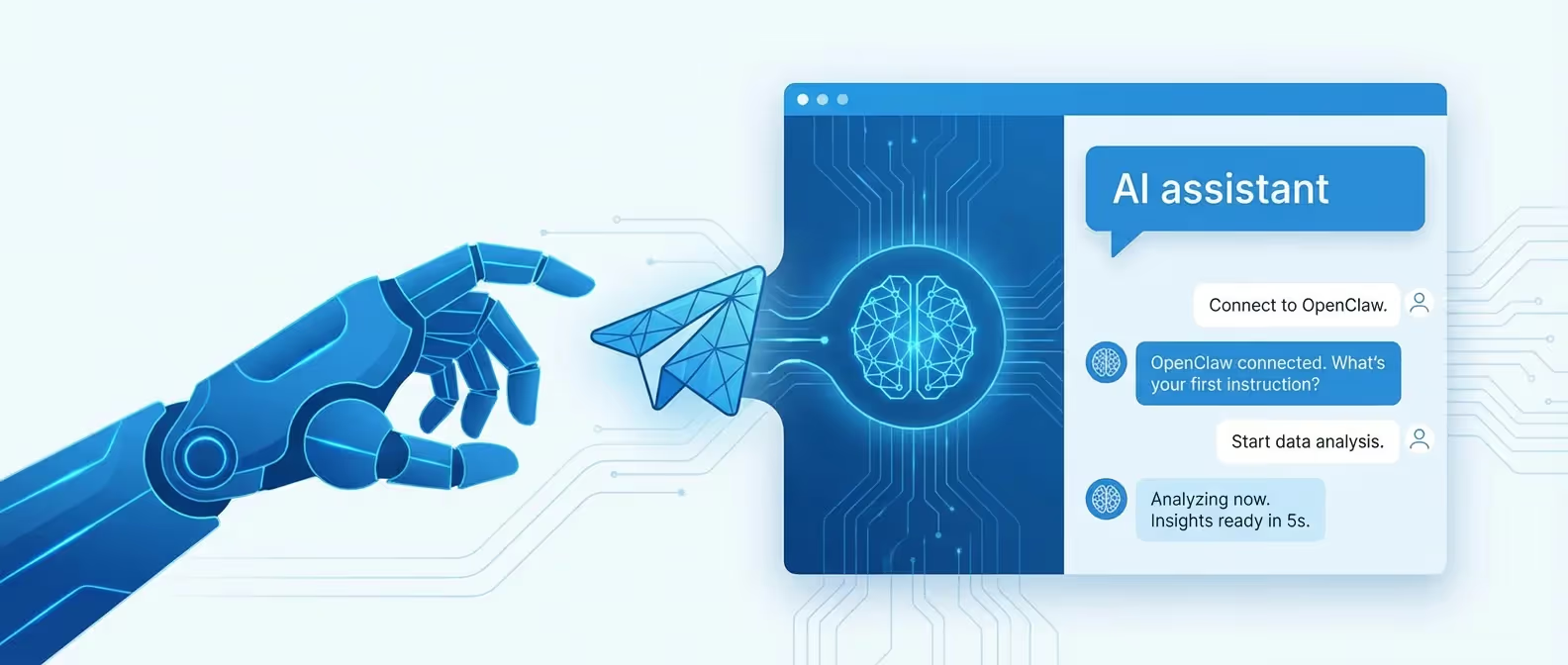
Telegram is the most popular channel for OpenClaw users - and for good reason. It’s fast, supports rich media, and has an incredibly developer-friendly Bot API. In this tutorial, we’ll build a fully functional AI assistant on Telegram, powered by your self-hosted OpenClaw gateway.
By the end, you’ll have a personal AI bot that can execute code, search the web, manage files, and respond to natural language - all from Telegram.
Prerequisites
- OpenClaw installed and running (see our installation guide)
- A Telegram account
- Node.js 22+ installed
Step 1: Create Your Telegram Bot
Open Telegram and start a conversation with @BotFather - Telegram’s official bot creation tool.
Send the following commands:
/newbotBotFather will ask for:
- Bot name - The display name (e.g., “My OpenClaw Assistant”)
- Bot username - Must end in
bot(e.g.,my_openclaw_bot)
After creation, BotFather gives you a Bot Token. Copy it - you’ll need it shortly.
Use this token to access the HTTP API:
7123456789:AAH_your_secret_bot_token_here
Step 2: Get Your Telegram User ID
You need your numeric user ID to authenticate with OpenClaw. The easiest method:
- Open Telegram and search for @userinfobot
- Send any message to it
- It will reply with your user ID
Your user ID: 987654321Why is this important? OpenClaw uses your user ID to restrict the bot so only YOU can interact with it - preventing unauthorized access.
Step 3: Connect Telegram to OpenClaw
If you’ve already completed onboarding, you can add Telegram as a new channel:
openclaw channel add telegramThe CLI will prompt you for:
? Enter your Telegram Bot Token: 7123456789:AAH_your_secret_bot_token_here
? Enter your Telegram User ID: 987654321
? Enable message threading? (Y/n): Y
Alternatively, you can configure it directly in the OpenClaw config file:
# ~/.openclaw/config.yaml
channels:
  telegram:
    enabled: true
    bot_token: "7123456789:AAH_your_secret_bot_token_here"
    allowed_users:
      - 987654321
    threading: true
    parse_mode: "MarkdownV2"
Restart the gateway to apply changes:
openclaw gateway restartStep 4: Test Your Bot
Open Telegram and send a message to your bot:
What's the current time?Your OpenClaw-powered bot should respond within seconds, powered by your configured LLM.
Step 5: Enable Rich Interactions
OpenClaw supports advanced Telegram features out of the box. Here’s how to configure them:
Enable Inline Commands
Add custom bot commands via BotFather:
/setcommandsThen paste:
status - Check OpenClaw gateway status
tools - List available tools
clear - Clear conversation history
help - Show available commands
Configure Media Handling
OpenClaw can process images, documents, and voice messages sent via Telegram. Enable these in your config:
# ~/.openclaw/config.yaml
channels:
  telegram:
    media:
      images: true
      documents: true
      voice: true
      voice_transcription: true
Step 6: Set Up Automation Triggers
One of OpenClaw’s most powerful features is automation. You can configure your Telegram bot to perform scheduled tasks:
# ~/.openclaw/skills/daily-report.yaml
name: daily-report
trigger:
  type: cron
  schedule: "0 9 * * *"  # Every day at 9 AM
channel: telegram
action: |
  Generate a summary of:
  1. My calendar events for today
  2. Any unread priority emails
  3. Weather forecast for Vancouver, BC
  Send the report to my Telegram.
Activate the skill:
openclaw skill enable daily-reportNow every morning at 9 AM, your Telegram bot will proactively send you a daily briefing.
Step 7: Multi-User Access (Optional)
If you want team members to access the bot, add their user IDs:
channels:
  telegram:
    allowed_users:
      - 987654321    # You
      - 123456789    # Team member 1
      - 111222333    # Team member 2
    permissions:
      987654321:
        role: admin
        tools: all
      123456789:
        role: user
        tools: [web_search, file_read]
      111222333:
        role: user
        tools: [web_search]
This granular permission system ensures each user only has access to the tools you approve.
Advanced: Custom Keyboards and Buttons
You can define interactive buttons that appear in Telegram chats:
# ~/.openclaw/skills/quick-actions.yaml
name: quick-actions
channel: telegram
keyboard:
  inline:
    - text: "🔍 Search Web"
      action: "Search the web for the latest tech news"
    - text: "📊 System Status"
      action: "Run 'openclaw gateway status' and report back"
    - text: "📝 Draft Email"
      action: "Help me draft a professional email"
Troubleshooting
Bot Not Responding
# Check gateway status
openclaw gateway status

# View real-time logs
openclaw logs --follow --channel telegram
“Unauthorized” Errors
Make sure your user ID in the config matches exactly. Re-verify with @userinfobot.
Slow Response Times
Check your LLM provider’s rate limits and latency:
openclaw diagnostics --providerWrapping Up
You now have a fully operational AI assistant living inside Telegram, powered by your self-hosted OpenClaw gateway. From here, you can add more channels, build custom skills, and integrate it with everything from your calendar to your custom web apps.
Want us to build a custom OpenClaw deployment for your business? Reach out to our team - we architect self-hosted AI solutions that scale.